Work Plan Tab
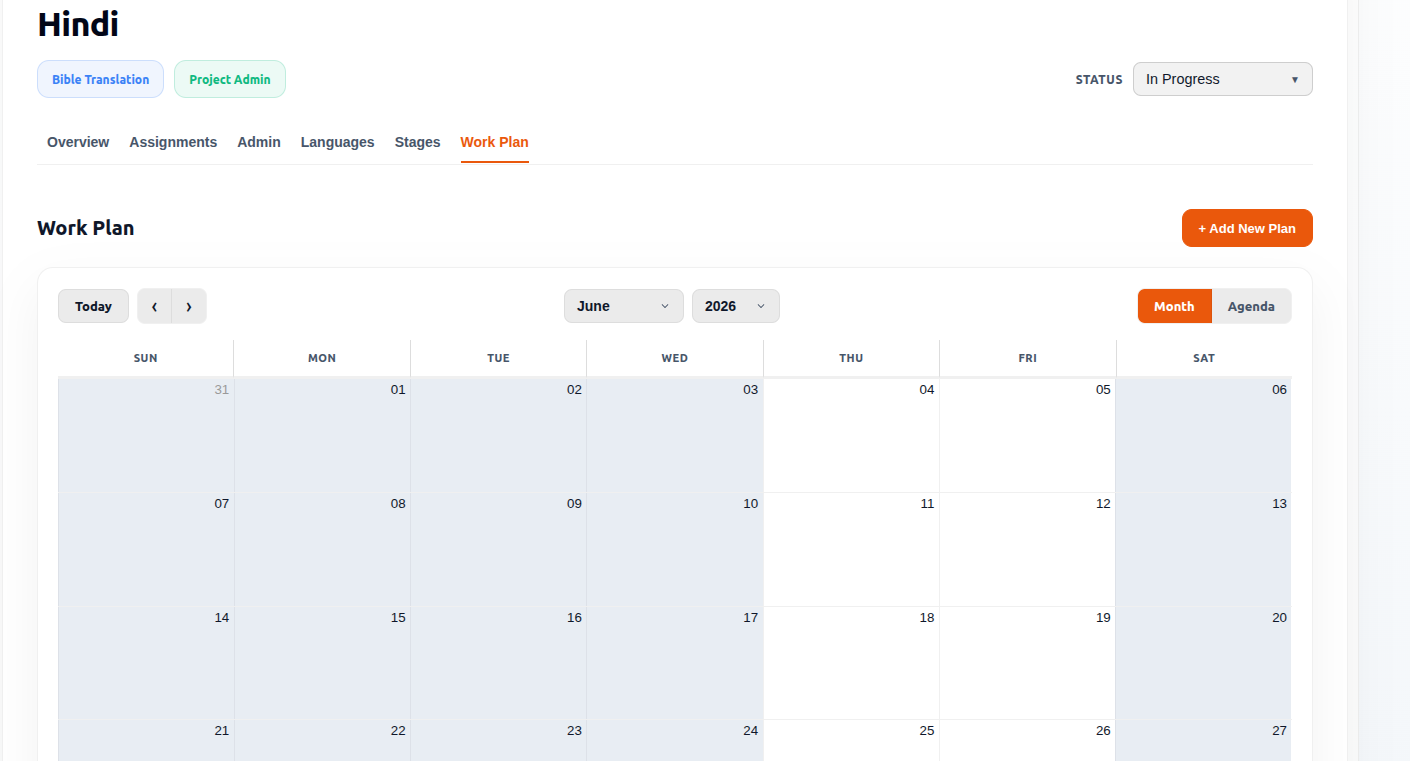
The Work Plan tab provides a calendar-based and agenda-based view of project planning activities.
It allows users to review scheduled work plans, navigate through different months and years, and view planned events in either a calendar or agenda format.
Access Permissions
| Role | Access |
|---|---|
| Admin | ✓ |
| Officer | ✓ |
| PM | ✓ |
| TL | ✓ (View Only) |
| Team Member | ✓ (View Only) |
Purpose of the Work Plan Tab
The Work Plan tab helps users:
- View scheduled project plans
- Review work plan events
- Navigate project schedules
- Switch between calendar and agenda views
- Monitor planned work activities
Work Plan Views
The Work Plan tab provides two viewing modes:
- Month View
- Agenda View
Users can switch between these views using the view selector.
Month View
The Month View displays scheduled work plans within a calendar layout.
Displayed information includes:
- Month
- Year
- Calendar dates
- Scheduled work entries
The calendar allows users to review planned activities across an entire month.
Calendar Navigation
Navigation controls are provided within the calendar.
Available controls include:
- Today
- Previous Period
- Next Period
- Month Selector
- Year Selector
These controls allow users to navigate between different calendar periods.
Scheduled Work Entries
When work plans exist for a selected period, they are displayed within the calendar.
Example event shown:
- WORK
Scheduled entries are displayed on the corresponding calendar dates.
Agenda View
The Agenda View displays scheduled work plans in a list format.
Displayed information includes:
- Date
- Time
- Event
This view provides a chronological list of scheduled activities.
Agenda Columns
The Agenda table contains the following columns:
| Column | Description |
|---|---|
| Date | Scheduled event date |
| Time | Scheduled event time |
| Event | Event name |
Empty State
If no work plan events exist for the selected period, an empty state message is displayed.
Example message shown:
There are no events in this range.
Add New Plan
The Add New Plan button is displayed within the Work Plan section.
This action is used to create a new work plan.
Month Selector
The Month selector allows users to view work plans for a specific month.
Example month values shown:
- May
- June
Year Selector
The Year selector allows users to view work plans for a specific year.
Example year shown:
- 2026
Role-Based Visibility Summary
| Feature | Admin | Officer | PM | TL | Team Member |
|---|---|---|---|---|---|
| View Work Plans | ✓ | ✓ | ✓ | ✓ | ✓ |
| Month View | ✓ | ✓ | ✓ | ✓ | ✓ |
| Agenda View | ✓ | ✓ | ✓ | ✓ | ✓ |
| Calendar Navigation | ✓ | ✓ | ✓ | ✓ | ✓ |
| Add New Plan | ✓ | ✓ | ✓ | ✗ | ✗ |
| Edit Work Plan | ✓ | ✓ | ✓ | ✗ | ✗ |
Notes
- The Work Plan tab is available to all project roles.
- Admins, Officers, and PMs have full access to add or edit plans.
- Team Leaders and Team Members have view-only access to the Work Plan tab.
- Users can switch between Month and Agenda views.
- Calendar navigation controls allow movement between different periods.
- The Month View displays work plans on a calendar.
- The Agenda View displays work plans in a tabular format.
- An empty state message is displayed when no work plans exist for the selected date range.
- The Add New Plan button is available within the Work Plan section for authorized roles.