Languages Management Page
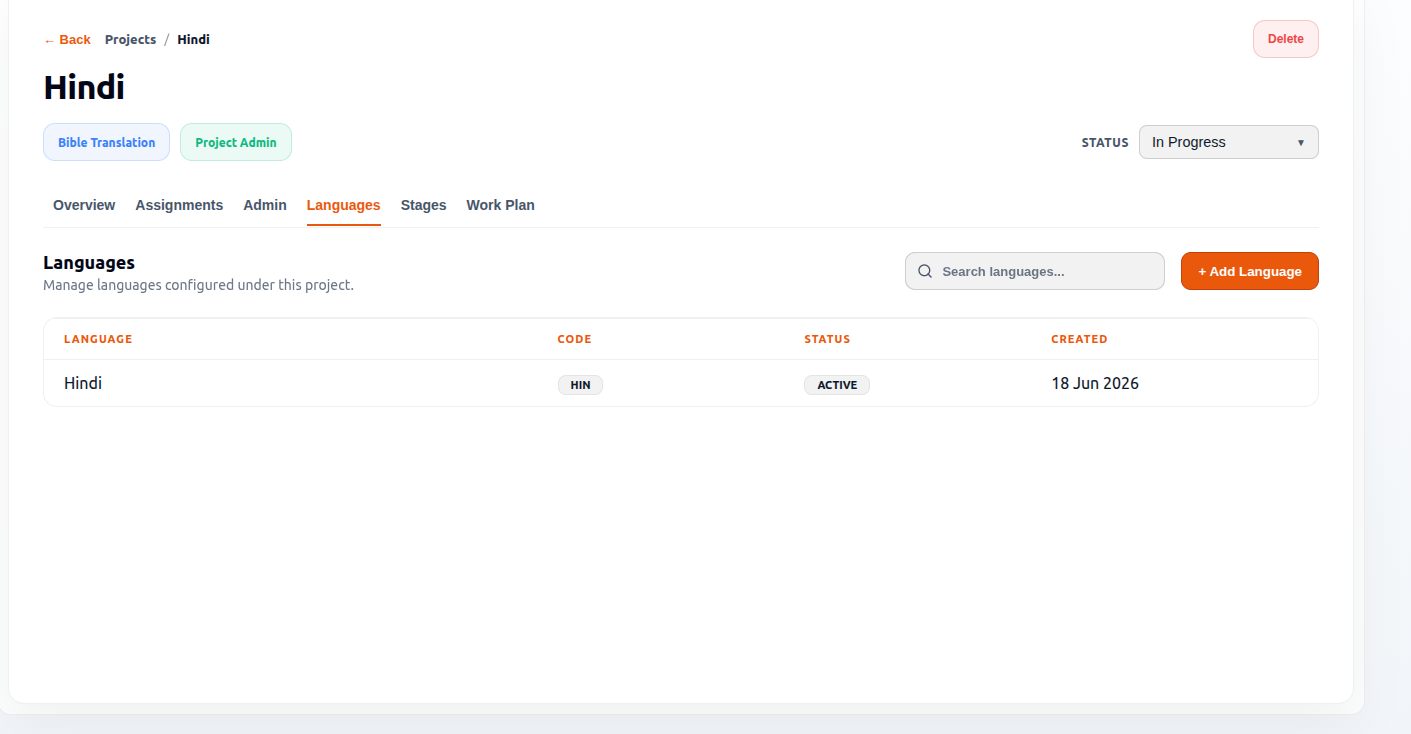
The Languages section is used to manage all translation languages configured under a project. This page allows project administrators to add, organize, activate, and control language-specific workflows inside Bible Translation projects.
Each language added here becomes a separate translation workflow containing:
- Books
- Chapters
- Verses
- Translation stages
- Progress tracking
This page is essential for multilingual Bible translation management.
Access Permissions
| Role | Access |
|---|---|
| Admin | ✓ |
| Officer | ✓ |
| PM | ✗ |
| TL | ✗ |
| Team Member | ✗ |
Purpose of the Languages Page
The Languages page helps teams:
- Add translation languages
- Configure scripture scope
- Track language activity
- Organize multilingual projects
- Enable workflow tracking per language
Every language operates as an independent translation structure within the project.
Languages Table Overview
The top section displays all languages currently attached to the project.
Language Column
Displays the translation language name.
Examples:
- Malayalam
- dd
Purpose
Identifies the language workflow currently configured under the project.
Each language receives:
- Its own assignments
- Progress tracking
- Workflow stages
- Scripture structure
Code Column
Displays the short language identifier.
Example:
MAL
Purpose
Used for:
- Internal references
- Language tracking
- System identification
- Reporting
The code is optional during creation.
Status Column
Example:
ACTIVE
Purpose
Shows whether the language is currently enabled and operational inside the project.
Possible statuses may include:
- Active
- Inactive
- Archived
Only active languages participate in workflow tracking and assignments.
Created Column
Displays the date the language was added to the project.
Purpose
Used for:
- Activity tracking
- Timeline monitoring
- Administrative records
Add Language Button
The Add Language button opens the language creation form.
This is used to configure a new translation language inside the project.
Add Language Form
The pop-up form is used to create and configure a language workflow.
Language Name Field (Required)
Purpose
Enter the official name of the translation language.
Example:
- Malayalam
- Hindi
- Tamil
This becomes the main identifier throughout the project workflow.
Language Code Field (Optional)
Purpose
Enter a short identifier for the language.
Examples:
- MAL
- HIN
- TAM
Used for:
- Internal tracking
- Reporting
- Workflow identification
This field is optional.
Scope Selection Section
One of the most important features in the language setup process.
This determines:
Which portions of scripture will be included in the language workflow?
OLD TESTAMENT Option
Purpose
Includes Old Testament books inside the language workflow.
When selected:
- OT books become available
- Chapters and verses are generated
- Assignments can be created
NEW TESTAMENT Option
Purpose
Includes New Testament books inside the language workflow.
When selected:
- NT books become available
- Scripture structure is generated
- Translation tracking becomes active
Expand/Collapse Arrows
The small arrows beside each testament allow users to expand and view the books inside that section.
Purpose
Used for:
- Selecting specific books
- Controlling translation scope
- Organising scripture selection
Checkbox Selection
Checkboxes allow users to:
- Select entire testaments
- Select specific books
- Control translation scope precisely
This prevents unnecessary workflow creation for books not included in the project.
Save Language Button
Purpose
Creates the language workflow and attaches it to the project.
After saving:
- The language appears in the Languages table
- Assignments are generated
- Books/chapters/verses become available
- Workflow tracking begins
Cancel Button
Purpose
Closes the form without saving changes.
Close Button
Located at the top-right of the pop-up.
Purpose
Exits the language creation window.
How the Language Workflow Works
Step 1 — Add Language
User enters:
- Language name
- Optional code
Step 2 — Select Scripture Scope
Choose:
- Old Testament
- New Testament
- Specific books if needed
Step 3 — Save Language
Arkbox automatically:
- Creates the scripture structure
- Generates assignments
- Enables workflow tracking
Step 4 — Language Appears in Project
The language now becomes active across:
- Assignments
- Stages
- Progress tracking
- Translation workflows
Role-Based Visibility Summary
| Feature | Admin | Officer | PM | TL | Team Member |
|---|---|---|---|---|---|
| View Languages | ✓ | ✓ | ✗ | ✗ | ✗ |
| Search Languages | ✓ | ✓ | ✗ | ✗ | ✗ |
| Add Language | ✓ | ✓ | ✗ | ✗ | ✗ |
Notes
- Only Admin and Officer roles can access the Languages tab.
- PM, TL, and Team Member roles cannot access the Languages tab.
- The Languages tab displays all languages configured under the selected project.
- Users can search existing languages using the search field.
- Users can add new languages using the Add Language button.
- An empty state message is displayed when no languages have been added to the project.