Overview Tab
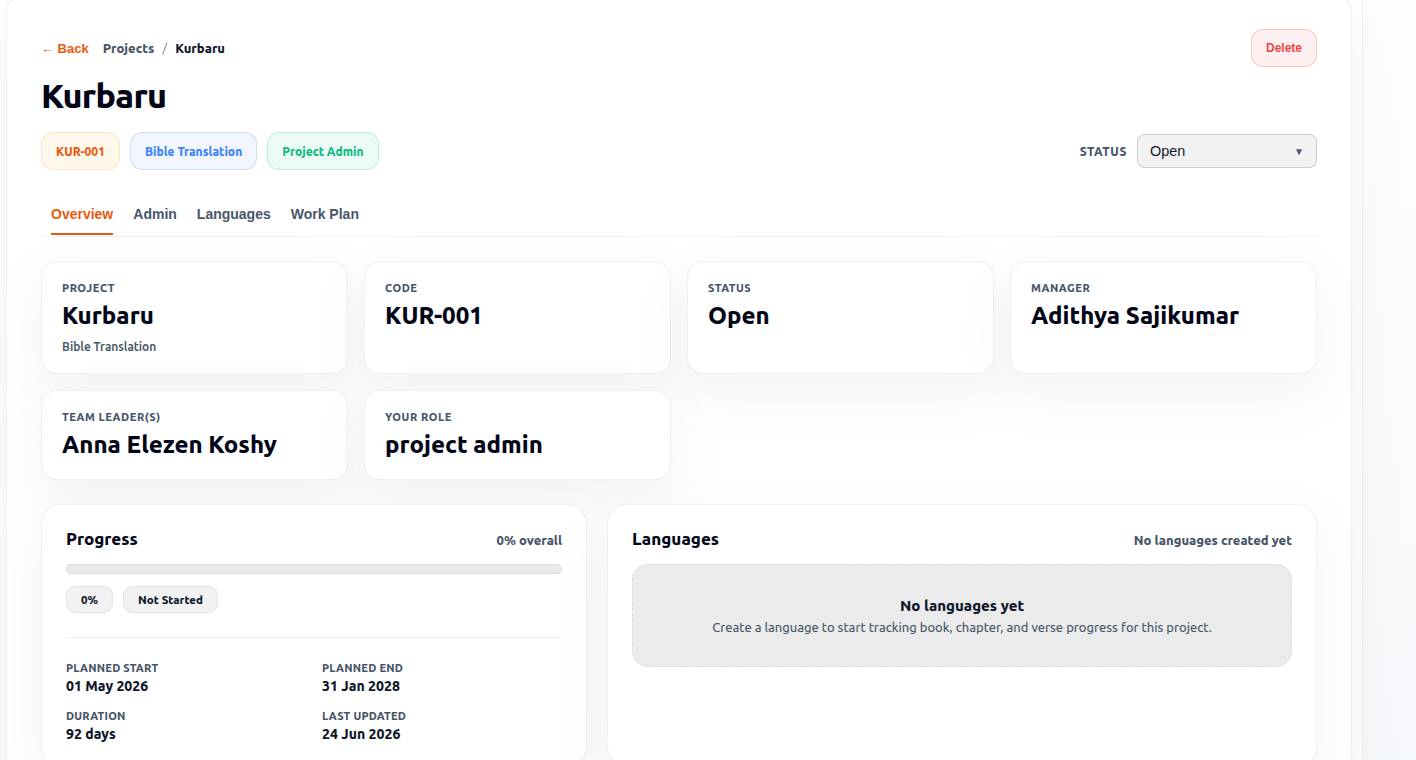
The Overview tab provides a high-level summary of the project, including project information, progress tracking, language status, workflow stage progress, and project notes.
It serves as the primary dashboard for monitoring project activity and reviewing essential project details in a single view.
Access Permissions
| Role | Access |
|---|---|
| Admin | ✓ |
| Officer | ✓ |
| PM | ✓ |
| TL | ✓ |
| Team Member | ✓ |
Overview Tab Components
The Overview tab contains the following sections:
- Key Metric Cards (Project, Code, Status, Manager, Team Leader(s), Your Role)
- Progress Section
- Languages Section
- Stage Progress Section
- Project Notes
Key Metric Cards
At the top of the Overview tab, six cards provide quick visibility into the project's current details and your access level:
1. PROJECT
- Description: Displays the official name of the project.
- Sub-label: Shows the project type category (e.g.,
Bible Translation).
2. CODE
- Description: Displays the project's internal tracking code. Shows a hyphen
-if no code was assigned during project creation.
3. STATUS
- Description: Displays the active operational status of the project (e.g.,
Open,In Progress,Completed).
4. MANAGER
- Description: Displays the name of the assigned Project Manager who holds administrative oversight for the project workspace.
5. TEAM LEADER(S)
- Description: Displays the names of the assigned Team Leaders coordinating the project workflow.
6. YOUR ROLE
- Description: Displays the project role assigned to the currently logged-in user (e.g.,
project admin,project officer,project manager,team leader, orteam member).
Status Management
The Status dropdown displays the current project status.
Available statuses may vary based on project configuration.
Example status shown:
- Open
The status helps users understand the current operational state of the project.
Delete Project
The Delete button is available within the project header area.
This action is used to permanently remove the project from the system.
Only users with appropriate permissions can perform project deletion.
Progress Section
The Progress section provides a summary of project completion and scheduling information.
Displayed information includes:
- Overall Progress Percentage
- Progress Status
- Planned Start Date
- Planned End Date
- Duration
- Last Updated Date
This section helps users monitor project progress against planned timelines.
Languages Section
The Languages section provides a summary of languages associated with the project.
Displayed information includes:
- Language Name
- Language Code
- Language Status Indicators
- Total Languages Count
- Active Languages Count
This section gives a quick overview of project language activity.
Stage Progress Section
The Stage Progress section displays workflow progress information for project stages.
Displayed information includes:
- Selected Language
- Stage Name
- Completed Verses
- Total Verses
- Completion Percentage
- Book Progress Information
- Schedule Status Indicators
This section helps users monitor workflow completion across project stages.
Project Notes
The Project Notes section displays notes that were defined during project creation.
This section provides project-level reference information for users working on the project.
If no notes were provided during project creation, the system displays an empty state message.
Purpose of the Overview Tab
The Overview tab helps users:
- Review project information
- Monitor project progress
- Track workflow stage completion
- Review language activity
- Identify project leadership
- View project notes
- Monitor project status
It serves as the central dashboard for understanding the current state of a project.