RemoteOps Center
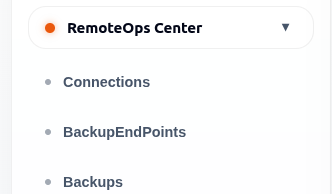
RemoteOps Center helps administrators connect remote systems, configure backup storage, and manage backup jobs.
Pages In This Section
| Page | Purpose |
|---|---|
| Connections | Register and monitor remote systems. |
| Backup Endpoints | Configure storage destinations for backups. |
| Backups | Create and manage backup jobs and schedules. |
Connections
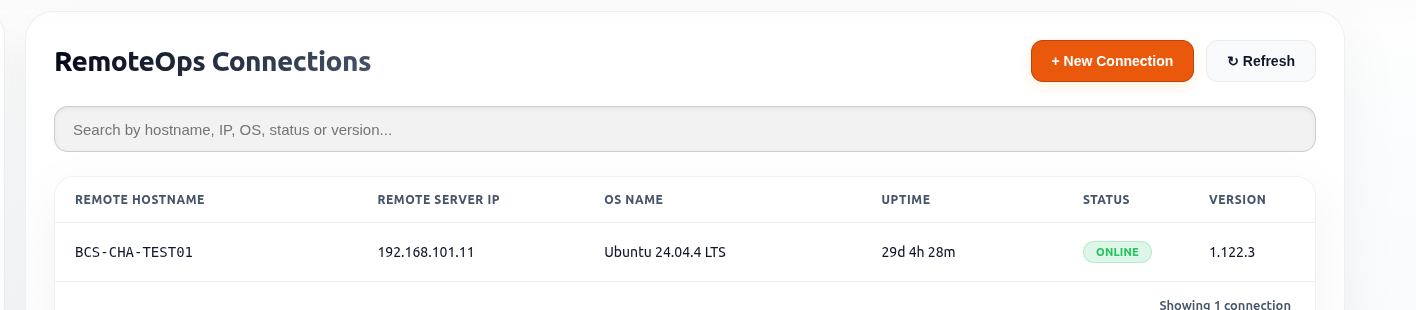
Connections represent remote systems or servers that ArkBox can manage.
The table can show remote hostname, server IP, operating system, uptime, connection status, and agent or system version.
| Column | Description |
|---|---|
| Remote Hostname | Name of the connected remote system. |
| Remote Server IP | IP address of the remote system. |
| OS Name | Operating system running on the remote system. |
| Uptime | Length of time the system has been running. |
| Status | Current connection state of the remote system. |
| Version | Installed RemoteOps agent version. |
- Use Refresh to reload the connection list and view the latest connection status information.
Add A New Connection
- Open Admin.
- Open RemoteOps Center.
- Select Connections.
- Select New Connection.
- Enter the remote hostname.
- Enter the remote server IP.
- Enter the server URL if required.
- Generate a secret token.
- Test the agent connection.
- Save the connection when the test succeeds.
Notes
- Remote Hostname and Remote Server IP must be entered before generating a secret token.
- After generating the secret token, ArkBox displays an Agent Configure Command.
- Copy and run this command on the remote system to configure the RemoteOps agent.
Backup Endpoints

Backup Endpoints define where backups are stored.
| Field | Meaning |
|---|---|
| Endpoint Name | Friendly name for the storage location. |
| Type | Storage type, such as S3-compatible storage. |
| Status | Availability state. |
| Added On | Date the endpoint was created. |
- Use Refresh to reload the endpoint list and view the latest endpoint information.
Add A Backup Endpoint
- Open Backup Endpoints.
- Select Add Endpoint.
- Enter an endpoint name.
- Select the endpoint type.
- Select Continue.
- Complete the required storage details.
- Test the connection.
- Save the endpoint.
Notes
- Endpoint types determine how ArkBox connects to the storage location.
- Some fields are optional depending on the selected endpoint type.
- Advanced Settings can be expanded when additional configuration is required.
- Use Test Connection to verify that the storage configuration is valid before saving.
Manage A Backup Endpoint
- Open Backup Endpoints.
- Select an existing endpoint.
- Update the required settings.
- Test the connection if needed.
- Save the changes.
To remove an endpoint, use Delete Endpoint from the Danger Zone section.
Backups

Backups are jobs that protect selected resources by copying them to a configured backup endpoint.
The backup table can show backup name, backup type, remote endpoint, schedule, next run time, and last modified time.
- Use Refresh to reload the backup list and view the latest backup job information.
| Area | Fields |
|---|---|
| Basic Information | Backup name and description. |
| Backup Setup | Backup type and backup endpoint. |
| Backup Mode | On-demand or automatic. |
| Scheduling | Repeat cycle, start date, and start time. |
| Retention Policy | How long backups should be kept. |
| Resource Selection | Resources included in the backup. |
Backup Modes
| Mode | Description |
|---|---|
| On-Demand | Runs only when started manually. |
| Automatic | Runs according to the configured schedule. |
Repeat Cycle Options
Automatic backups can be scheduled using one of the following repeat cycles:
- Once
- Hourly
- Daily
- Weekly
- Monthly
- Yearly
Create A Backup Job
- Open Backups.
- Select Add New Backup Job.
- Enter the backup name and optional description.
- Select the backup type.
- Select the backup endpoint.
- Choose on-demand or automatic mode.
- Configure the schedule if automatic mode is selected.
- Set the retention policy.
- Select the resources to include.
- The available resources depend on the selected backup type.
- Save the job.
Manage A Backup Job
- Open Backups.
- Select an existing backup job.
- Update the required settings.
- Save the changes.
To permanently remove a backup job, use Delete Job from the Danger Zone section.
Good Practices
- Test connections before relying on them for backups.
- Use clear endpoint names, such as
Production BackuporArchive Storage. - Review schedules to avoid overlapping heavy backup jobs.
- Use retention policies that match organizational requirements.
- Check task notifications after starting backup work.