My Library
My Library
Role: Arkbox User and Resource Admin
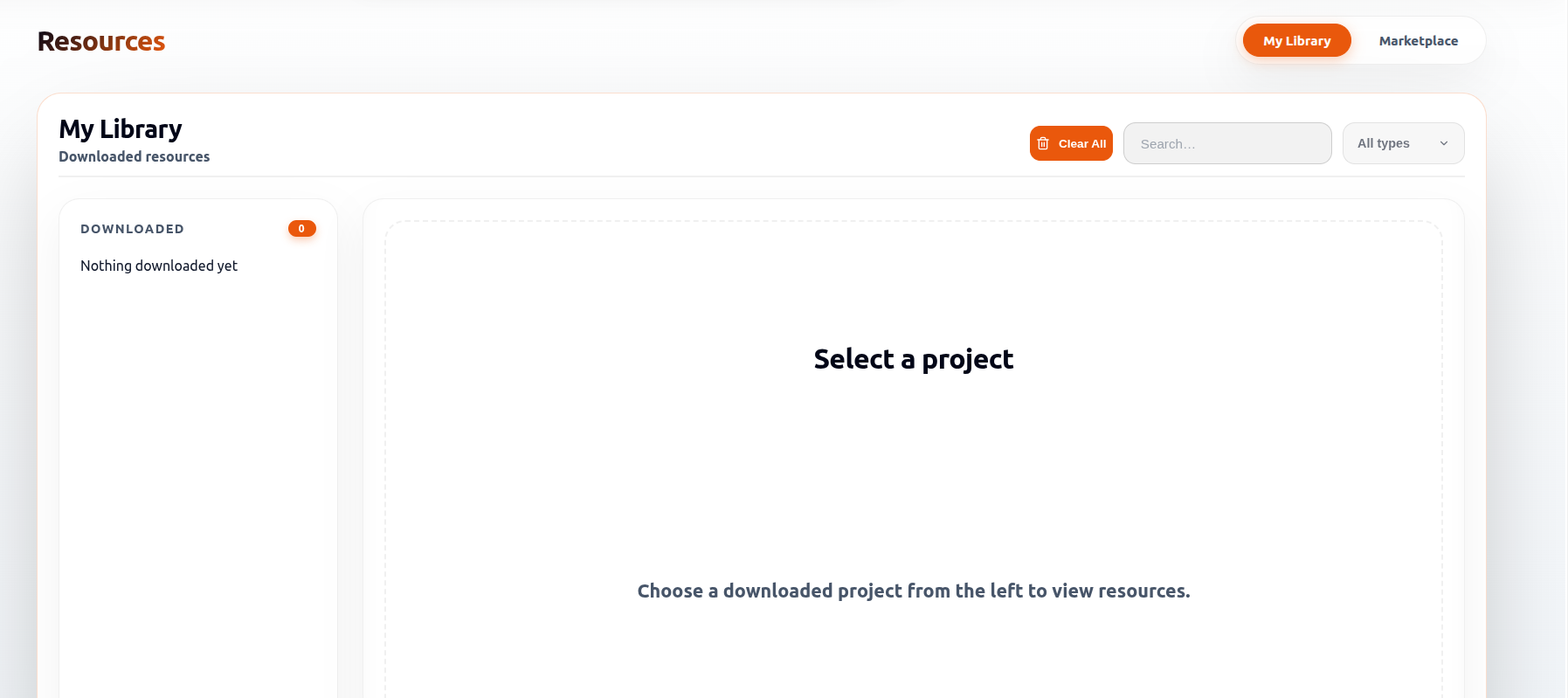
My Library shows the resources that are already downloaded and available inside ArkBox.
If an item appears here, it is ready to open or download again.
What My Library Is For
Use My Library to:
- Review resources already available to you
- Open or download resource files again
- Search and filter downloaded items
- Keep downloaded resources organised by project
How Resources Appear Here
Resources appear in My Library after they are downloaded into ArkBox.
For users, this is the main resource view.
For admins, downloaded items from Marketplace also appear here.
How The Page Is Arranged
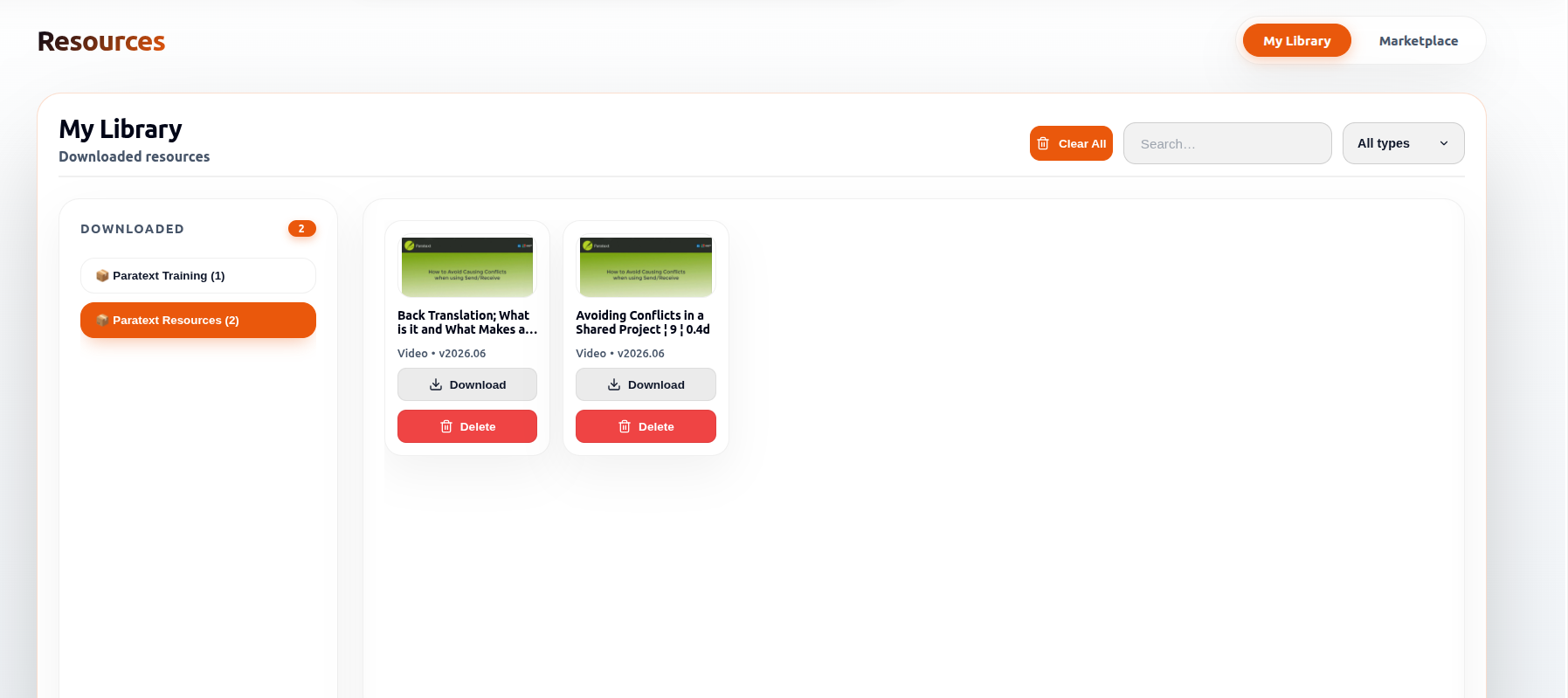
| Area | Purpose |
|---|---|
| Left side | Shows downloaded projects |
| Right side | Shows the resource files inside the selected project |
What Each Resource Card Shows
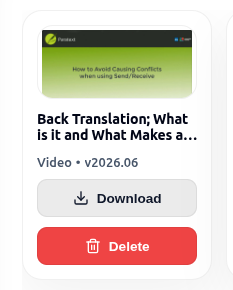
| Item | Meaning |
|---|---|
| Resource name | Name of the downloaded resource |
| Type | Resource format, such as video, audio, document, image, software, or tool |
| Version | The available release shown for that item |
| Download | Downloads the resource to your own system |
| Delete | Removes the resource from My Library |
| Count | Displays the number associated with the available resource action, such as downloads or views |
Actions In My Library
Download
- Downloads the selected resource to your own system
- Lets you access the file again whenever needed
Delete
- Removes the selected resource from My Library
- Useful when a downloaded item is no longer needed
Deleting a resource removes it from My Library and it will no longer appear in the downloaded resources list.
Clear All
- Removes all downloaded resources from My Library
- Usually used when a full cleanup is needed
When Clear All is selected, a confirmation dialog is displayed before the resources are removed.
Select:
- Cancel to keep the downloaded resources
- Clear All to remove all downloaded resources from My Library
Search And Filter
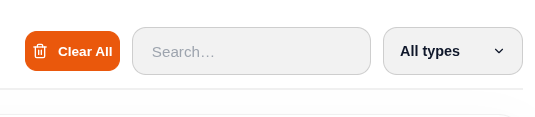
At the top of My Library you can use:
- Search to find a resource by name
- All types to narrow the list by resource type
Resource Type Filter
Use the resource type dropdown to display only specific types of downloaded resources.
Available resource types include:
- All types
- Videos
- Audio
- Documents
- Images
- Software
- Tools
Selecting a resource type updates the displayed resources and shows only matching items.
Useful Notes
- My Library opens from the Resources section.
- Resources are grouped under their downloaded project.
- The right panel updates when you select a different project.
- Resources downloaded from Marketplace become available in My Library.